Showing posts with label Bluetooth. Show all posts

Sunday, 1 May 2011

Renaissance

My recent bluetooth hardware upgrade has given me the chance to play around with some old and (I thought) redundant equipment. To my delight, it seems that some of that kit is not quite as redundant as I'd thought!

In a previous life I spent much time driving around the UK and, as a law-abiding and safety-conscious citizen, I used a bluetooth headset to make and receive telephone calls. Although I no longer drive tens of thousands of miles a year, I still own the headset (a Jabra BT135) and I decided to see if it could be put to use as a Skype headset on my Inspiron 6400: it can!

You can install Skype from the Ubuntu Software Centre.

To install your headset:
  1. Make sure that bluetooth is activated on your PC.
  2. Open your bluetooth Preferences dialog. This is usually achieved by clicking the bluetooth icon in your system tray or notification area: a pop-up menu will offer the Preferences option. If you don't use a system tray or notification area, go to System > Preferences > Bluetooth.

  3. With your bluetooth headset switched off, press and hold the power button until the operating light is a steady blue.
  4. In the bluetooth Preferences dialog, make sure that your computer is visible to other devices and click the Set up new device... button: the New Device Setup wizard will appear.

  5. Click Forward to invoke the device search.

  6. Select the device (the Jabra BT135) and click the Forward button. If you are prompted for a PIN number, the default for the Jabra BT135 is 0000.
  7. When the setup is finished, you'll receive a confirmation screen:

  8. Click the Close button to return to the Preferences dialog and you should see the headset listed in the Paired Devices window.

You may need to tell Skype what device to use: go to the Sound Options window in the Skype options dialog to set your preferences.

Thursday, 28 April 2011

Giving the Lynx More Teeth

Last May I blogged on adding bluetooth functionality to my 6400 using a USB dongle. At the time, my Inspiron was running WinXP and the experiment was not a great success, hence the dongle found a new home plugged into my Ubuntu box where it proved to be a far better acquisition. However, despite protestations to the contrary, my Inspiron 6400 has now joined the Ubuntu family and I thought it time to revisit the problem.

The Inspiron 6400 is designed to house an integrated bluetooth adaptor but, for various reasons, I never specified a card when I bought the machine from DELL: however, retro-fitting the adaptor proves to be simple and (reasonably) cost effective. I found a suitable adaptor from a company called Justop.

The card is housed behind a cover in the battery compartment: simply remove the battery and then open the card-door. Behind the cover, you should find your cable (it's a good idea to make sure that this is installed before you order the part!): connect the adaptor and slide it into the rear of the cover.

Carefully, replace the adaptor cover and then the battery. Reboot and, if all's well, you should see your bluetooth indicator light up during the boot sequence.

Ironically, I use bluetooth to connect my Ubuntu machines to Windows mobile devices - oh well!

Sources & References
Justop Dell Wireless 355 Bluetooth V 2.0+EDR Module-GK103-(Module Only)

Monday, 3 May 2010

Giving the Koala Teeth

I have a confession: I still have a laptop that runs Windows XP and I'm unlikely to change the operating system on it any time soon. I'm a freelance project manager and most (in fact, all) of my clients run Windows and use Microsoft Office. Now, I do know that I can save projects, documents, spreadsheets and presentations created in OpenOffice in MS Office formats, but I've always found that there are some niggles with format conversions, so I tend to produce work for assignments using Office. That's the only reason that I keep a laptop that runs Windows.

One of the features absent from my laptop (a DELL Inspiron 6400) is bluetooth functionality and, at the back-end of 2008, I thought I'd treat myself to a bluetooth dongle so I could swap files with the various bluetooth enabled devices that I carry around. I ended up with an adaptor from LM Technologies and, to be blunt, it turned out to be a less than successful experiment: Windows complained when the adaptor was plugged in and complained even more when it wasn't. I got so fed up with the constant nagging that I uninstalled the drivers and forgot about the whole palaver.

Anyway, to cut a long story short (even I'm getting bored), I came across the adaptor the other day and started wondering what would happen if I plugged it into the back of my Ubuntu box. The answer is: not very much! That is, until I realized that I had to start the bluetooth applet.

The Gnome Bluetooth module is included in Karmic Koala (9.10) by default but you have to enable the applet in order to connect to other BT devices. To start the module, open a terminal and type:

bluetooth-applet

The Bluetooth icon should appear in your Notification Panel: clicking on the icon gives you access to the Bluetooth menu.
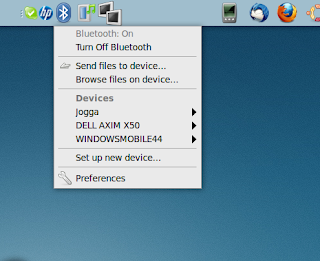


Clicking Preferences allows you to pair devices and make your computer discoverable (which you'll need to do if you want to find your PC with another bluetooth device).
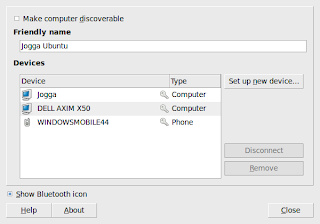


Setting up a partnership (also known as pairing allows you to send files to and browse files on the paired device from your Ubuntu machine. However, in order to receive files from paired devices, you must install the gnome-user-share application. Open a terminal and type (or copy and paste) the following code:

sudo apt-get install gnome-user-share

Enter your sudo password when prompted and the application should install. Henceforth, you should be able to send and receive files using bluetooth.

That's it: another application that works as it should without messing around with additional drivers and software to manage a simple file exchange protocol. There are just two other things worth considering:
  1. When you're not pairing devices, it's a good idea to turn off the bluetooth discoverable mode. This is simply a security precaution:
    Bluetooth as other network types implies security risks, so setting your adapter undiscoverable to other devices is a good thing to do to limit the possibility of cracking.
  2. If like me you would like to start bluetooth at bootup, you can add the application to your startup Applications.