Showing posts with label hp. Show all posts

Wednesday, 18 June 2014

Mint Print

I've been constantly surprised delighted by Mint 16 - so delighted that all of my machines (with the exception of the Windows PC) are now running this fabulous Linux distro!

Today I had a need to print something: my normal printer hasn't had any ink cartridges for months (so infrequently do I print anything these days), so I thought I'd see if my old Photosmart 7660 could get me out of trouble. This printer is eleven years old and the later versions of Ubuntu always struggled to deliver consistent results and so, in all honesty, I really expected to be wasting my time: how wrong I was!

Plugging the printer in produced instant recognition: no fuss, no drama, and no struggle! Furthermore, the print quality was as good as when the printer was new and multiple prints are possible, something that I could never achieve when connecting it to Ubuntu.

Of course, next month I'll have to upgrade to Mint 17 (or downgrade to Mint 13) because 16 will no longer be supported. Let's hope that the new OS delivers similar excellent results.

Sources & References:

Monday, 29 November 2010

Demise of the DELL

Recently, I wrote about synchronizing Windows mobile PIM data with Thunderbird on my Ubuntu distro. I have a couple of PDAs running Windows mobile: a DELL Axim X50 (running WinMob 2003) and an HP iPAQ hx2790 (running WinMob 5.0). Since publishing my tutorial, I have been happily synchronizing both devices successfully over my home network.

However, my recent attempts to improve my understanding of small networks have persuaded me to improve my wireless access security from WEP to WPA and this simple change of security encryption played havoc with my PDAs: after changing to the more secure WPA protocol, neither could connect to the network. A little research suggested that this is a well-known problem and HP has already issued a fix for my iPAQ: however, installing it still didn't allow my device to connect but, following some chatter on various forums, I suspected that using Odyssey Client (pdf) might provide the solution. Fortunately, although Odyssey isn't installed by default on the iPAQ, HP ships a licenced copy on the companion CD (at least, it did with my hx2790!) and installing it is simple using Activesync or Mobile Device Center (and a Windows machine, obviously!). Once installed, configuring the client was straightforward and my iPAQ rejoined my network as a wireless node.

Sadly, the news for my X50 is not so good. DELL did ship the X50 with a pre-installed version of Odyssey, but even with this utility running, my PDA can't connect to my wireless access point even though it has no trouble detecting the network. Even a hard reset hasn't had the desired effect and I suspect that the DELL will shortly be consigned to the drawer where legacy devices go to die.

Monday, 7 June 2010

Before you blame the Equipment Revisited!

It seems that my analysis of my printer problems may have been flawed!

A few days ago I had six documents and three labels to print: all needed to be produced in a rush. Now, call me a cynic, but I can always guarantee that when I'm in a hurry, the bugs and problems will manifest themselves. So, urgent job and I can't get the printer to print more than one document at a time (if I can get it to print anything at all). Thinking that I've already solved the problem I try the cable (no joy), so I replace the cable (still no joy), in despair I turn to Google.

It seems that there is a known bug in the Karmic kernel when using the hplib utility for USB printers (it works fine with network printers). The solution turns out to be fairly simple:
  • Delete the USB printer from the HP Device Manager
  • From the System Menu, select Administration & PrintingSelect Printer from the New drop down menu and the utility will search for available printers.
  • When the printer dialog box appears, select your printer and then click on the Connection option (rhs)

  • Select, USB
  • Click the Forward button and follow the wizard
That's it!

The downside is that I can't use the hp Device Manager to monitor my ink levels or receive status messages: but at least I can print using my hp photosmart 7660 USB printer!

Saturday, 15 May 2010

Before you blame the Equipment...

I've had one of those days: my network printer ran out of ink this afternoon (yes, I know!) and I remembered that I had an old hp Photosmart 7660 in a box upstairs.

I was confident that I could just plug the USB cable into the back of my Ubuntu box and get on with life because that's what always happens when I plug anything into Linux! However, after connecting it to the pc and wiping the dust away, I began to suffer an intermittent but persistent fault: after printing a document or test page, the printer would just hang and I would get a strange error message from my hplip toolbox if I tried to send anything else to the spooler. I could restart the printer by unplugging it from the mains and then print a new document, but after that, I couldn't get it to do a thing. I confess that my first reaction was to think that it was a hardware problem and that my trusty printer was destined for the local dump (I mean, recycling centre, of course!).

I've had the printer for years and only replaced it when it refused to play nice with Windows Vista (more accurately, Windows Vista refused to play nice with any of my hardware): it's always produced excellent quality print both for office use and photographs, so I was sorry to see it go. More to the point, it didn't consume huge amounts of resource on my old PC nor require the obscene bloatware that accompanied its replacement. The Photosmart 7660 also has an embedded card reader, so getting it to work would have been a seamless replacement for my inkless All-in-One machine and I really didn't want to run around on a Saturday afternoon buying overpriced cartridges from the local office supplies store. I tried everything that I could think of to get it to work: clearing the print queue, rebooting the PC, restarting hplip, having another coffee...

The only thing that didn't occur to me was to exercise the first lesson of PC maintenance: check the cables!

Yep, the USB connection on the printer was not pushed fully home: a small adjustment later and Ubuntu has once again demonstrated its superiority to anything Microsoft has to offer: much faster, up to date information and beautiful prints!

The only thing wrong with my Ubuntu box is the idiot on the other end of the human interface devices! The lesson (had I bothered to learn it way back when Windows 3.1 was my weapon of choice) is to check the cables and connections whenever you have problems with hardware: perhaps I've learned it this time.

Sunday, 2 May 2010

Karmic and the Card Reader

One of the benefits of moving to Ubuntu is leaving behind the bloatware that accompanies much of today's hardware built with Windows in mind: Hewlett-Packard seems to be one of the worst offenders!

Some months ago, I changed my old (much loved) hp printer to a Photosmart C6280 All-in-One device because I had upgraded to Vista and my Photosmart 7660 USB printer would no longer co-operate with Windows. I networked the new printer and, after installing the drivers and associated software on the various machines at home, all was well (apart from the persistent problems of computers hanging during the shut-down sequence caused by the hp software). One of the features of the new combo device that I really like is the embedded card reader, which makes uploading photos to the network drive much less painful than attaching a camera and, whilst it was a bit slow using Windows, if worked flawlessly with CF, SD and micro-SD cards.

When I started my experiment with Ubuntu, life wasn't quite so easy: Ubuntu found the network printer without any difficulty, but it took me a little while to find the Linux drivers and figure out how to get them installed. That said once I'd got Ubuntu connected, the printer printed, the scanner scanned and the copier copied and that's really all I wanted from my device: with the notable exception of access to the card reader to which Ubuntu resolutely refused to connect.

Until now!

In desperation I made one last attempt to find a way to utilize my card reader and found three facts hitherto unknown:
  1. There is an hp toolbox utility for Ubuntu that gives you status information (such as ink levels and print queues) on network and local printers.
  2. The C6280 can be attached to a router (using a network cable) and a computer (using a USB cable) at the same time, acting as both a network printer and a local printer.
  3. Ubuntu reads the embedded card reader of a local printer without any need for additional software or drivers.
First, the code for the printer utility. Open a terminal and type (or copy & paste) the following code into the command prompt.

sudo apt-get install hplip

When prompted, enter your password and Ubuntu will download the utility. If you are prompted to continue, type "y" and press enter. Reboot Ubuntu and the utility will appear in your Notification Panel applet (if you use it).



If you don't use the Notification Panel, you can access the utility via Applications → Accessories.
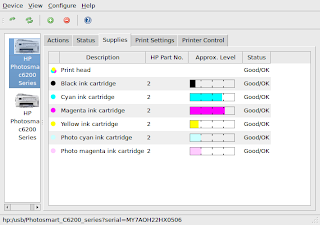


If your device is not connected to your PC as a local printer, simply connect them using a USB cable. Right click the utility icon (or start it from the Accessories menu) and select HP Device Manager... from the drop down menu, followed by the Setup Device icon (the green circle with the white plus) to start the discovery wizzard. In all honesty, I'm no IT expert and I don't know if this workaround is a sensible procedure or not, but I have found no conflicts or problems in using the device this way: the network device prints much quicker than the local, but that seems to be the only difference.

As for the card reader, simply plug in a card! You can access the card's folders and files using Nautilus or what ever file browser you use (or the Places option on the Gnome Menu). Alternatively, you can configure Nautilus to open your file browser when a card is detected: From the System Menu (Karmic 9.10), select Preferences → File Management → Media (tab) → Photos (option) and choose how you want Ubuntu to react to card detection.

So, the £7 I spent on a card reader at Amazon was wasted: but I don't really mind too much.