Showing posts with label Security. Show all posts

Sunday, 28 September 2014

SSH - Sharing Privately

Apart from loving the look and feel of the Cinnamon desktop, Mint 17 has another attraction over some other Ubuntu derivatives such as Lubuntu: Secure Shell (SSH) has native support from the file manager GUI.

Many of my posts over the last four years have been about networking & file sharing using Ubuntu and I have used (and promoted) Samba as the solution to my particular circumstances. However, recently I have become increasingly aware that Samba is not without its problems, particularly read/write permissions and lock files on the remote server. These problems aren't terribly serious and there are ways to work around the issues; but I want my file server to be just that and I don't want to find workarounds for simple file sharing on a private network.

As an example, you may know that I spend much of my free time in the mountains of North Wales and take some of my pictures on my mobile (cell) phone. Rather than slip the ssd out of the phone and into a card reader (meaning that I have to stop the card and disassemble the phone) I normally use Bluetooth and set up a personal area network (PAN) to transfer the files to a laptop or desktop. Using Samba, I find that I can't simply copy the new files to my pictures directory on the server because I don't have the necessary permissions. Try as I might, I can't seem get the read/write access right. I've also had problems with GnuCash, meaning that I have to use the program on the server to update my finances - not ideal!

Using Secure Shell to connect to my server resolves all of these permission issues at a stroke and, for all intents and purposes, it behaves exactly the same as accessing local files. It has the additional advantage in that directories on the server do not need to be shared in the conventional sense and that makes them accessible only to me (or anyone that steal my login credentials).

To access your files you need only to invoke the Connect to Server... dialog from Nemo (File > Connect to Server...) and provide the necessary details.

If you've set up Samba to recognize netbios names, then it's pretty straightforward: the port default for SSH is 22 (and will only change if you've changed it!). Once connected, you can access your files and directories from Nemo's GUI and use them locally. This may be overkill on a private network, but using SSH also resolves another irritating problem: file lock. Using Samba, if an application wasn't closed before shutting down the client pc, the file lock would remain on the server (effectively making the file, read only): SHH seems to resolve this problem because Nemo is closed down as part of the normal shutdown sequence.

One final tip, if you're having trouble connecting to your server, check that ufw is allowing incoming traffic on port 22:

sudo ufw allow proto tcp from 192.168.0.0/24 to any port 22

Sources & References:

Saturday, 12 July 2014

If I'm A Suspect...

...Go to court, get a warrant and tap my communications - it's that easy!

I'm not a [insert religious/political preference here] terrorist, I'm not a paedophile, and I am not a convicted criminal - so why should my data be intercepted & retained by my own (and other) government for no better reason than the just-in-case justification? Passing emergency legislation in an attempt to ignore a court judgement is an outrageous abuse of political power!

"We are told this is a paedophile and jihadi 'emergency', but the court judgment they seek to ignore was handed down over three months ago and this isn't snooping on suspects but on everyone." Shami Chakrabarti

Oh, that's right, I also live in one of the most watched countries in the world. So much for living in a democratic nation! I wonder if Canada will have me...

Sources & References:

Password Mantras

My apologies, ordinarily I avoid post trawling, but I came across this essay via my Schneier On Security rss feed this morning: it made me smile.

Whilst I kind of like the idea that a password can be life changing and interesting,the fact is that these kind of sentence/word-string passwords can be (and are being!) cracked. If you want a memorable password, I still recommend the Schneier method or, use randomly generated passwords and keep them in a password safe.

Sources & Resources:

Sunday, 6 July 2014

He's Behind You: NSA & Tails

It seems that my posts about Tails may well have brought me to the attention of the NSA. Several news outlets are reporting on the NSA's use of a data slurping tool called XKeyScore. The scope and capabilities of this program are disputed (I suppose that's a necessary consequence of it being secret), but it's clearly designed to invade the privacy of non-American citizens.

"It's hard to tell how extensive this is. It's possible that anyone who clicked on this link -- with the embedded torproject.org URL above -- is currently being monitored by the NSA. It's possible that this only will happen to people who receive the link in e-mail, which will mean every Crypto-Gram subscriber in a couple of weeks."
Bruce Schneier

Whilst I'm not an American citizen, it's nice to know that the NSA should be interested in me :) Nonetheless, insofar as I am aware, I have not been accused of any crime and I believe that I am granted the right of privacy under Article 8 of the European Convention on Human Rights (Liberty's interpretation of Article 8 & see also the UK's 1998 legislation) so it's not entirely clear why my own government would not only condone this invasion of privacy but also to participate in the wholesale data collection effort spearheaded by my American cousins.

I can feel a strongly worded protest to me MP coming on!

Sources & References:

Friday, 13 June 2014

Getting Started With Tails

Because Tails is designed to be used as a live operating system, in many respects downloading and creating a live disk is the same as most other Linux distros. However, given that security is likely the most important consideration for users, special attention should be paid to validating and verifying the download before using the operating system. The following process is aimed at Ubuntu users, links are provided for other operating systems where appropriate.

You can download Tails from the Tails Download, Verify and Install page.

In order to verify the download, you must also download the Tails signing key which you can get from the same link. But (and this is a big but for the security conscious), how can you be sure that the key that you have downloaded is genuine? It's possible (although, not likely) that the key has been compromised by a man-in-the-middle attack and you may want to ensure that the key that you have downloaded has been signed by members of the Debian Development Team.

"Tails signing key is actually already signed by the keys of several official developers of Debian, the operating system on which Tails is based. Debian makes an extensive use of OpenPGP and you can download the keys of all Debian developers by installing the debian-keyring package. You can then verify the signatures those developers made with their own key on Tails signing key."

First, download the signature from Tails Download page to your Download folder (in this example, home/[user]/Downloads/)1 and check that the key is signed. Open a terminal and then:

gpg --import /home/[user]/Downloads/tails-signing.key

This command imports the key into your gpg keyring. In order to check the signatures, you must first locate the Tails key id: the following code will list all public keys (including the Tails key that you've just imported) in your keyring.

gpg --list-public-keys

The output will include the following entry:

pub 4096R/BE2CD9C1 2010-10-07 [expires: 2015-02-05]

uidTails developers (signing key)

uidT(A)ILS developers (signing key)

The relevant ID is the second part (BE2CD9C1) of the alpha-numeric string on the first line; using this key ID, check the signatures with:

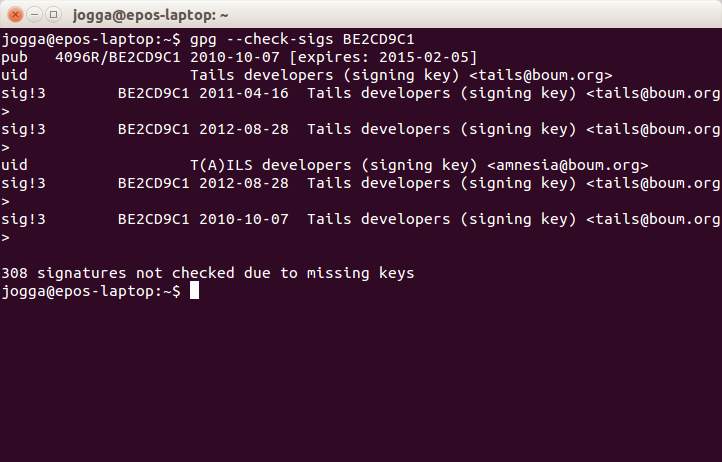
gpg --check-sigs BE2CD9C1

The output will appear as follows:

Note the last line which warns us that: "308 signatures not checked due to missing keys". These missing keys are those of the Debian Developers and others for whom you have no public keys in your keyring. You can download the Debian keys from the Ubuntu Software Center (search for debian-keyring) or with:

sudo apt-get install debian-keyring

Now that you have access to the Debian keys, you can check to see if any of the missing keys are in the Debian keyring:

gpg --keyring=/usr/share/keyrings/debian-keyring.gpg --keyid-format long --check-sigs BE2CD9C1

By using the Debian keyring (rather than your personal keyring) the number of missing keys has been reduced to 300 telling us that eight of the signatories on the Tails key are in the Debian keyring. I think this a more elegant solution that the recommended process: checking random signatures can be both time-consuming and frustrating. Moreover, there is no need to import signatures into your personal keyring that you will be unlikely to use again. Whilst not foolproof, this should give you confidence that the Tails key that you have downloaded is genuine and can be used with confidence to check the Tails .iso file. Fortunately, this is not such a long-winded process as validating the signature!

Change to the Download directory:

cd /home/[user]/Downloads

Next, check the signature of the .iso file matches the signing key:2

gpg --keyid-format long --verify tails-i386-1.0.1.iso.sig tails-i386-1.0.1.iso

If all's gone well, you should see:

gpg: Signature made Sat 30 Apr 2011 10:53:23 AM CEST

gpg: using RSA key 1202821CBE2CD9C1

gpg: Good signature from "Tails developers (signing key) "

Don't worry if you see a warning telling you that "[t]his key is not certified with a trusted signature!", this simply means that you haven't personally signed the Tails key.

Now you're ready to burn the Live Disk. In Ubuntu you simply follow the same procedure as for all Linux Distros: in your file manager, navigate to your download, right-click the .iso file and then select Write to Disc...3. Remember that it is good practise to burn the disk at the lowest possible speed in order to reduce errors.

To use your Live Disk, simply reboot your PC using the optical drive as the first boot device.

That's it! Now you're ready to use the Tails operating system. In the next post, I'll look at the pros & cons of burning a Live USB and consider whether or not to create a persistence file.

Sources & References:

Notes:

    1. Change [user] to suit your circumstances - usually your username
    2. Remember, over time the version numbers will change: make sure that you are referencing the correct file (download) name.
    3. In some other distros (for instance, Mint) this might not be as easy. However, there are appps (such as K3B) that will burn your Live Disk: search the software center or use the link above. Windows users can use Infrarecorder to burn their installation disks.

Sunday, 8 June 2014

Tails You Win!

Whether or not you sympathise with Edward Snowden's decision to air the NSA's & GCHQ's dirty laundry in public, one thing is clear: wholesale data collection from the public network has been ongoing for sometime. Ironically, it seems, that we pay taxes so that our governments can spy on us and, whilst I don't consider myself (particularly) paranoid, Snowden's revelations and the subsequent commentary by people such as Bruce Schneier and Glenn Greenwald have certainly made me reconsider my own online behaviour and security.

In today's world of Facebook and Twitter where virtually everything seems to be shared with virtually everyone, it's easy to be persuaded by the "nothing to hide, nothing to fear" argument: however, whilst I have undoubtedly contributed to some of the pointless and meaningless garbage on the Internet1, I find myself increasingly troubled by this view. Tyranny begins when a government's purpose becomes the scrutiny of its people and it justifies its actions by promoting the politics of fear - society surrenders its personal freedom in order that a few ne'er-do-wells might be apprehended (usually, on the vague suspicion that they might have "been up to something"). Of course I'd be the first to accept that there are bad people out there, but the subjugation of the whole population in order to mitigate an already minuscule risk is, at best, overkill and one is obliged2 to question the motives of the political class!

Sadly, whatever I may think about state-sponsored data theft, the problem is not only likely to continue but also to escalate and the question becomes, what can one do to protect oneself? Snowden himself reportedly uses a Linux system called Tails to keep his online activities hidden from unwelcome attention and Schneier also acknowledges using the operating system. Although my online activities are (almost certainly) not under the same scrutiny as Snowden's or Schneieir's, I thought I'd have a look and see what Tails is, how easy it is to use, and what it offers in terms of user security.

"Tails is a live operating system, that you can start on almost any computer from a DVD, USB stick, or SD card. It aims at preserving your privacy and anonymity"

For those already familiar with the Linux concept of a Live Disk, Tails will not be an entirely alien concept. It does, however, have some interesting quirks:

  1. Tails is pre-configured for online security: all the bundled applications are forced to connect to the Internet via Tor and any that attempt a direct connection are blocked. It is the Tor network that provides the user with anonymity during an online session.
  2. The OS runs as a Live Disk by design: it makes no changes to the system OS and makes no use of the hard drive's swap files. The obvious advantage of this approach is that data from the Tails session can't be extracted from the hardware once the system has been shutdown (because the OS only uses RAM which is dynamic or volatile memory). Moreover, it also means that a user can make use of virtually any computer without leaving a trace.
  3. Encryption is built in: email, browsing, and instant messaging applications all have encryption enabled. Tails will also allow you to encrypt disks using LUKS.

Built on a Debian platform and shipped with the GNOME desktop, if you've used any of the early versions of Ubuntu, the desktop will be quite familiar and most Linux users won't be fazed by the operating environment. That said, some of the bundled apps will likely be less familiar!

Leaving aside the acquisition and installation (more of that in later posts) of this operating system, Tails is pretty simple to use if not a little slow: you'll want to use a USB stick rather than a DVD just to improve boot and application loading times (and to create a secure persistence area in the file system). Moreover, given that java and Flash are turned off (for fairly obvious reasons), the surfing experience won't be the richest you've ever enjoyed!

Having played with Tails for a couple of days, it's clearly a very classy piece of work and the developers are to be applauded for producing an excellent and secure operating system. Nonetheless, I'm not sure that I'll be migrating to Tails any time soon: it's probably a step too far in terms of paranoia.

Over the next few days I'll post hints & tips on downloading and installing the system.

Sources & References:

Notes:

1 In the interests of full disclosure, I acknowledge to maintaining both Facebook & Twitter accounts. Additionally, of course, there's also a blog (attached to a Google+) account...

2 To mangle a quote variously attributed to Courtney, Jefferson, Paine, & Lincoln: "the price of freedom is eternal vigilance"

Friday, 9 May 2014

So, 'Nix is Safe, Right?

There's always been a lot of debate about how safe Linux is from virus and hacking attacks: inevitably the discussion is distilled to a simplistic comparison between the distribution in question & Windows, but I usually find these comparisons to be unhelpful.

There's a lot of reasons that Windows is more susceptible to attack, not least it dominates the PC market, giving attackers a larger pool of potential victims. Moreover, viruses for 'nix are unheard of in the wild but, before we Linux users get too smug, that doesn't mean that we're impervious to attack! The reality is that all operating systems are vulnerable to some extent and vigilance is always recommended whatever system you choose.

The good news is that there are some very simple steps that new users can take in order to mitigate their exposure to attack. The first, and probably most important, is to choose a strong password. This mitigates the chance that an attacker can guess your password or use a dictionary attack to gain access to your system.

Another important action is to enable the bundled firewall, ufw. The firewall is not enabled by default in Ubuntu or its derivatives but it's easy to enable and, for most users, can be run using default settings1. Open a terminal & then:

sudo ufw enable

Provide your password at the prompt and hit enter. To check your firewall status, at the terminal prompt, type:

sudo ufw status

If all's gone well, you should see the output:

status: active

You may also see some additional rules (but only if you've customized your firewall).

Finally, don't forget to install security updates as soon as they become available: these patch your system and close vulnerabilities that attackers might exploit.

Ultimately, security relies on the user, but these simple tips can help keep your system (and your data) secure.

Sources & References:

Notes:

    1 If you share files across a network, you'll need to add some firewall rules: more about that in another post but I've referenced guidance in the sources section.

Tuesday, 29 April 2014

Quick Tip - Identify Sites That Share Your GMAIL Address

A fascinating article on MaximumPC gave me a heads up on a little trick to keep my gmail address private (or, at least, find out who's sharing it without my permission).

When signing up for online accounts, append your normal gamil account with a unique identifier, thus: john+xxx@gmail.com. Where xxx is a unique string of arbitrary length that identifies a particular supplier or website.

For instance, if your email address is john.komphix@gmail.com and you want to sign up for komphix newsletters, you could append your email address to be john.komphix+komphix@gmail.com

Brilliant!

The whole article is worthy of your time if you want to make the most of your gmail account.

Sources & References:

Sunday, 21 July 2013

Ubuntu Forums Hacked

OMG!Ubuntu is reporting that the Ubuntu Forums has been hacked and user names and passwords, compromised.

Oh well, time to change my Forum password. Fortunately, I used Launchpad to access the forums (although, I do have a Forum account) and this doesn't appear to have been affected. Moreover, I use unique passwords for all sites and email accounts, so whatever the outcome, my personal exposure is an increase in email spam. Nonetheless, it's disappointing to see the suggestion that lax security led to this attack. It'll be interesting to see the outcome of any investigation. For now the Forum is down with a holding page at the url.

Sources & References:

Sunday, 8 July 2012

The Tail Wagging the Dog

When technology serves its owners, it is liberating. When it is designed to serve others, over the owner's objection, it is oppressive. There's a battle raging on your computer right now -- one that pits you against worms and viruses, Trojans, spyware, automatic update features and digital rights management technologies. It's the battle to determine who owns your computer. Bruce Schneier May 04, 2006

Bruce Schneier has long argued that proprietary code is a bad thing for end-users: fixing broken code doesn't generate much revenue and most of the big software houses only patch vulnerabilities when they can no longer be ignored. Now, Microsoft has introduced a new wheeze; make someone else responsible for its shoddy code.

With the forthcoming release of Windows 8, manufacturers will be required to install something called Secure Boot if they want their equipment to be certified as Windows compatible. This is a potential problem for anyone who wants to install a different operating system (like Linux) on their computer: if the software isn't approved by the UEFI interface, it won't load and you'll be locked out of your system. In essence, Microsoft has found a way to shackle your hardware to its software and all in the name of security.

Let's not pretend, Windows is ubiquitous and most (probably all) OEMs will comply with Redmond's fiat. So it's not surprising that Mark Shuttleworth has discussed the possibility of Canonical generating its own encryption key to pass the Secure Boot test. This is probably just pragmatism at work, but the reality is that you will no longer own your pc, you'll effectively lease it from those software providers that can get their keys incorporated in the UEFI. I can't help wondering if the tail is still wagging the dog.

Sources & References:

Tuesday, 20 September 2011

Rotten Apple?

I was surprised by the news that an attacker can potentially change a user's password on Apple's OS X Lion without knowing the owner's existing credentials - after all, the OS X is "[b]uilt on a rock-solid UNIX foundation", so system changes must require password authorization, right?

Apparently not!

I don't expect this to be a widespread exploit, not least because an attacker needs access to the machine while the owner is logged-on and Apple users are protected by a relatively low market share; but it beggars belief that Apple could drop such a clanger.

Sources & References:

Two Good Reasons to Use Opera

In his essay, Safe Personal Computing, Bruce Schneier informs us that he uses Opera as his web browser. That's as good a reason as any to choose Opera - here's another one.

The Register is reporting that:

"Researchers have discovered a serious weakness in virtually all websites protected by the secure sockets layer protocol that allows attackers to silently decrypt data that's passing between a webserver and an end-user browser."

In essence, the researchers (Thai Duong and Juliano Rizzo) intercept and decipher the authentication cookie on a secure connection: They plan to demonstrate the attack later this week at the Ekoparty Security Conference.

The attack is only effective against earlier versions of the TLS protocol; TLS1.2 is impervious to the attack. Few browsers support TLS1.2 by default, so few websites have switched to the protocol - a vicious circle! However, there is one browser that does support TLS 1.2 by design:

"While both Mozilla and the volunteers maintaining OpenSSL have yet to implement TLS 1.2 at all, Microsoft has performed only slightly better. Secure TLS versions are available in its Internet Explorer browser and IIS webserver, but not by default. Opera remains the only browser that deploys TLS 1.2 by default."

Whilst switching to Opera makes no difference to users' security if the majority of websites eschew the latest security protocols, this story does show that the Opera developers design-in the latest security and that is another good reason to switch.

Sources & References:

Friday, 2 September 2011

Some Days...

Today has been fairly challenging for me insofar as technology is concerned.

My first surprise was an email from Facebook telling me that

"A new unknown device logged into your Facebook account (Thursday, 01 September 2011 at 15:51)"
- well, I was at work at ten-to-four yesterday afternoon, so I know that it wasn't me! Strangely, my daughter also got a similar message, so it's entirely possible that this is a false alarm, but I don't take chances with security: time to change passwords.

Of course, the problem with a potential account compromise is that any infiltrator may have gained access via one of the email accounts associated with the account, so I also changed my email account passwords - or at least, I tried to change my email account passwords! It seems that one of my email account providers only accepts passwords between 8 & 16 characters long and only those that contain letters and (at least) one number - that's only a 95 bit password and not particularly secure! Doubtless, had I bothered to read these instructions, my task would have been so much simpler, but I was too busy trying to convince the dialog to accept a 210 bit password that contained all manner of characters.

Any way, I sorted it all out eventually and then decided to delete my Facebook account. It's too high in maintenance costs for my tastes and, notwithstanding its latest moves to secure users' privacy, it often plays fast and loose with users' personal details. When I came to post a quick note here to let people know that my account was in the process of being deleted, I got another surprise:

It seems that blogger doesn't support Opera 11.51!

Any way, I'm leaving Facebook and, if my friends need to know what I'm up to, I can be contacted via Karmic Odyssey. As for my intended post (on enabling Kubuntu's Desktop Effects on unsupported video cards), that'll have to wait until another day!

Sources & References:

Wednesday, 24 August 2011

Reminders

Recently I offered to take a look at a faulty laptop and working on the problems over the last few days has reminded me of why I began my odyssey into open-source.

The machine in question is running Windows Vista (SP1); it wouldn't boot into restricted (non-administrator) user accounts and was prone to crashing during the boot sequence. Getting the machine to boot into safe mode gave me some useful pointers:

  • This is a multi-user machine with two registered users & the Guest Account activated.
  • There were two AV programs installed (McAfee & AVG), both were active and both were out-of-date.
  • The firewall was turned off.
  • The last successful Windows update was 2009.
  • Internet Explorer crashed every time it was invoked.

These are signs that computer security is relaxed and immediately raised suspicion that some kind of virus or other malware might be responsible for the problems. So, the course of action was clear:

  • Uninstall McAffee (for no better reason than it's a subscription-based service and AVG is free).
  • Turn on the Windows firewall.
  • Update AVG and run a full system scan.
  • Install Spybot S&D and run a full scan in Administrator mode.
  • Reset Internet Explorer.

There were no viruses but Spybot did detect and remove over 142 bits of malware and tracking cookies! Once IE had been reset, booting into any account worked as expected: however, it was then that my problems really began.

For the sake of good order, I decided to update the machine and install SP2 (as Microsoft no longer supports SP1) but Windows update refused to work. Each time I tried the update, the update installer crashed, offering nothing but vague error messages and nebulous reference numbers.

Being a resourceful chap (and not wanting to be beaten by Windows!), I decided to install SP2 manually. So, I downloaded and saved it to the hdd and then ran it as an administrator - still no joy! Each time I tried to load the update manually, a new error message appeared:

"Window module installer has stopped working and was closed."

This is not a novel problem with Vista, just Google the error message to see how many other users have experienced the same thing. Indeed, so common is the issue that there are several solutions posted online (notably, Microsoft offers no solution) but I couldn't find one that resolved the problems on this particular machine. After several days (yes, days) of trying, I've given up! The fact is that the remaining options for resolving this issue are pretty brutal and it's not my machine!

  1. Leave WAU switched off and eschew all future updates from Microsoft (this is a bad option - it leaves the machine vulnerable to attack).
  2. Restore the PC to its factory condition and install SP1 & SP2 manually (although, there is no guarantee that this solution will fix the problem)
  3. Install Ubuntu - my favourite option!

If this had been an open-source problem, perhaps more attention might have been paid by the distro provider. In any event, the community would almost certainly have found a solution. This is why I turned to Linux in the first place and it seems, in retrospect, that my decision to abandon Windows was justified.

Source & References:

Thursday, 18 August 2011

Implementing Plan C

With the arrival of my brand new 32GB usb drive this morning, I thought that it was time to take my own advice and implement Plan C of my backup strategy. However, as usual things didn't turn out quite as I expected!

My initial plan was simply to create an encrypted directory on my flash drive and copy my backups across the network. However, copying large compressed files from network storage to usb (via pc) wasn't successful and I found Ubuntu reporting errors - so, I modified my plans (let's call it Plan C.i) to replicate the backup using SBackup. Unfortunately, that didn't work either - SBackup couldn't access the encrypted directory so I had to think of a Plan C.ii!

When I first started thinking about a backup strategy, one of the options that I considered was, rsync: however, I abandoned this option because it was just too complicated (for me) at the time. rsync is a command line tool - it's manual stretches to 61 pages when printed to file and it's not a particularly forgiving read! Fortunately, there is a graphical interface (Grsync) in the Ubuntu Software Centre that makes configuring a backup a little less intimidating and, when coupled with some excellent pointers from The University of Auckland, getting a working backup onto a USB drive is reasonably painless.

So, I now have copies of my essential files encrypted and saved to a portable disk: Plan C has been implemented. Given that I probably won't be automating this process (I'll still have to mount the USB drive and decrypt the directory whenever I want to refresh my backup), I kept the backup to absolute essentials only - documents & configuration files - but it is a working solution for disaster recovery.

Sources & References:

Wednesday, 17 August 2011

Sidejacking

Have you ever wondered how the script kiddies who often can barely read & write manage to hijack your Facebook or Hotmail account?

Well, it turns out that it's shockingly easy: in fact, I managed to learn how to gobble up someone else's cookie and hack their account by following just three links! No brute force or dictionary attacks necessary - all that's required is a laptop, a public WiFi hotspot, Firefox, and a copy of Firesheep.

The irony is that it is (or, at least should be) easy to foil such attacks. All three of the links that I followed are essentially arguing for the same thing - end-to-end encryption between server and browser that protects users from identity theft. Indeed, Eric Butler (the author of Firesheep) even claims that he only released his hacking tool to demonstrate the extent of the sidejacking problem.

"Websites have a responsibility to protect the people who depend on their services. They've been ignoring this responsibility for too long, and it's time for everyone to demand a more secure web."
Eric Butler via { codebutler }

The message should be obvious: whether you're using Facebook, Google, Hotmail, or a myriad of other services on the web, if you would rather that no-one else had access to your data, make sure that you are using a secure (https or ssl) link.

Sadly, I expect few people to heed this warning. After all, no-one bothered to turn on the security features released by Microsoft for its Hotmail service!

"For example, in July, eight months after Microsoft first offered HTTPS protection, the company revealed that only 2 million of the 500 million users of Hotmail had enabled the option."
Christopher Soghoian via Ars Technica

Sources & References:

Sunday, 7 August 2011

Deleting Directories Securely

The shred command is a great way of deleting individual files securely, but it can be a bit cumbersome if you have a lot of files that you want to delete at once. Fortunately, there is a secure method of deleting whole directories in Linux using the command line and a package called (appropriately enough), secure-delete.

You can install secure-delete from the Ubuntu Software Centre or the Synaptic Package Manager. The package contains tools to delete files & directories (srm), clean the swap memory (sswap), and clean the RAM (smem) - all of these tools are accessed via a terminal.

To delete a whole directory, open a terminal and type:

srm -r -v /path/to/directory

The -r option makes the process recursive (it deletes all sub-directories - so be careful!) and the -v option provides verbose output in the terminal window during the operation.

Clearly, this can save you a lot of time (and typing), but, as with all things Linux, there is an implicit assumption that you know what you are doing - once you have shredded files & directories using these tools, they cannot be retrieved.

Sources & References:

Wednesday, 3 August 2011

Identicons

Ok, time for something a little lighter than of late! This post isn't really anything to do with Linux or Ubuntu (or even computing really), but the concept intrigued me so much that I thought that I'd follow my curiosity and see where it led!

Recently I've been wondering about those strange glyphs that appear next to commenters' names on Wordpress blogs (I've also seen them used in adverts). It turns out that they're called identicons and they are graphical representations of hash values. Someone called Don Park devised the concept (in 2007) to represent IP addresses whilst maintaining user confidentiality - so far, so good: however, it seems to me that there are a couple of inherent flaws with this thinking:

  1. Efficacy relies on users having a static IP address, something that most of us won't enjoy outside of a professional environment.

  2. An IP address (static or otherwise) is no guarantee of a user's identity: the IP address identifies a box on the end of a wire, not the person on the end of the box!

No problem, just use the hash value of an email address to link an identicon to a person and you're good to go!

Well, maybe...

I can think of a couple of potential problems with this approach. But, let's not dwell on the negative; if you want to create your own identicon, you can sign up to a service like Gravatar and register your email address. Here's what mine look like:

Gravatar Default Image
Identicon Image
Mysetery Man
Retro
Monster
Wavatar

There are other providers or, if you're feeling brave, you can download the source code. Once you've created your account, you can link to your own identicon using:

< img src="http://www.gravatar.com/avatar/HASH" />

Where, HASH is the md5 hash sum of your registered email address (and the img tags are properly closed, unlike the above). The easiest way to get the hash (if you don't want to use the online tool) is to install GtkHash from the Ubuntu Software Centre.

Sources & References:

Monday, 1 August 2011

Cryptic - More on EncFS & Cryptkeeper

Recently I discovered Cryptkeeper in the Ubuntu Software Centre - it's a front-end for EncFS that sits in the system tray providing hassle-free access to your encrypted directories. Whilst this is undoubtedly a useful applet, it suffers from problems of memory leaks and segmentation faults and, despite the fact that there is a patch available, I've no idea how to fix the problem!

However, like most graphical interfaces, Cryptkeeper is really just a bridge between the user and the command line and the command line is often a "faster and more powerful" way to get things done. So, when I experienced a segfault earlier today, I thought that I'd explore EncFS's options using a terminal. In this post I'll outline the basic commands for creating, mounting, & unmounting an encrypted directory.

Creating an encrypted directory is simple - the command takes the form:

encfs /path/.dir_name /path/dir_name

Let's assume that I want to create an encrypted directory in my /home/usr_name directory called, crypt, my command is:

encfs /home/jogga/.crypt /home/jogga/crypt

I'll be notified that these directories don't exist and prompted to create them - at each prompt, I type y and press enter. I get the following output:

Creating new encrypted volume.
Please choose from one of the following options:
enter "x" for expert configuration mode,
enter "p" for pre-configured paranoia mode,
anything else, or an empty line will select standard mode.
?>

Selecting the standard configurations results in the following output:

Standard configuration selected.
Configuration finished. The filesystem to be created has the following properties:
Filesystem cipher: "ssl/aes", version 2:2:1
Filename encoding: "nameio/block", version 3:0:1
Key Size: 192 bits
Block Size: 1024 bytes
Each file contains 8 byte header with unique IV data.
Filenames encoded using IV chaining mode.
File holes passed through to ciphertext.

Now you will need to enter a password for your filesystem.
You will need to remember this password, as there is absolutely
no recovery mechanism. However, the password can be changed
later using encfsctl.

New Encfs Password:
Verify Encfs Password:

The new directories are created and mounted - that's it! Mouting existing directories takes the same form as above:

encfs /path/.dir_name /path/dir_name

Now I'll only be prompted for the password and my directory will be open and available to browse using Nautilus. However, if I want to limit the time a directory can remain open, I can add a switch to umount the directory automatically after a period of inactivity:

encfs --idle=time_min /path/.dir_name /path/dir_name

Where time_min is an integer of 1 or more.

Unmounting an encrypted directory takes the form:

fusermount -u /path/dir_name

Having the option to use a terminal should Cryptkeeper crash is useful and saves the trouble of having to reboot the system. Moreover, it's a great way to learn how things work in Linux.

Sources & References:

Monday, 25 July 2011

Plan C

Given my views on the cloud, I've been thinking about alternatives to uploading data backups to third-party servers.

In common with other types of memory, flash memory has seen a significant fall in price over recent years and large usb flash drives of 64GB can be had for under £70 (or as little as $90 if you're lucky enough to live in the USA). Flash drives are also small and portable, making them an ideal format for keeping data backups close at hand and separate from the data source.

However, size can also have its disadvantages: flash drives are easily misplaced or stolen, so keeping data secure, even if it should fall into the wrong hands, is of paramount importance.

The good news is that it's easy to create an encrypted directory on a flash drive using free encryption tools readily available from the Ubuntu Software Centre: just install EncFS & Cryptkeeper and you're good to go!

To create your directory:

  • Insert your usb flash drive & and it should mount under the /media/ directory.
  • Click the Cryptkeeper icon in the systray and select the New encrypted folder option.
  • In the Create a new encrypted directory dialog, select the usb drive from the Places menu and type a name for the new directory in the Name: text box.

  • Click Forward.
  • Enter & confirm a password for the directory and click Forward.
  • The directory should be created and mounted.

To import the encrypted folder on another machine:

  • Insert your usb flash drive & and it should mount under the /media/ directory.
  • Click the Cryptkeeper icon in the systray and select the Import EncFS Folder option.
  • In the Import and Encfs encrypted folder dialog, select the directory with a name ending with _encfs and then type a name for the mount point in the Location: text box.

  • Click the Forward button.

At any other time you can mount the encrypted directory by inserting the flash drive, clicking the Cryptkeeper icon, and selecting the checkbox next to the directory name. You'll be prompted for your password and your file browser will display the directory.

Now you can store data in the directory without the need to encrypt individual files. It is worth pointing out that flash drives have limited life-spans so it may even be prudent to have a Plan D!

Sources & References: