Showing posts with label Fonts. Show all posts

Monday, 21 March 2011

Ubuntu Font Family

I only became aware of the development of the Ubuntu Font Family when Canonical announced a new exhibition at London’s Design Museum dedicated to the output of the project. Unfortunately, the exhibition closed at the end of February (2011), but the good news is that you can still see the font and, even better, use it on your desktop!

Go to the Ubuntu Font Family web page and click on the apt-get install ttf-ubuntu-font-family hyperlink. This will open a Launch Application dialog.

Select the apturl option (if it isn't already highlighted) and click OK.

That's it! To use the font on your desktop and in your applications, go to the Appearances editor (Preferences > Appearances) and select the Fonts tab. To use the font in Open Office, just scroll through the font options as usual.

Sources and References:

Ubuntu Ubuntu Font
Ubuntu Font Family Download

Friday, 25 February 2011

Keyboard Conundrum

My little DELL Inspiron 1501 is proving to be an excellent test machine, but it has also presented a few interesting challenges in its own right.

One minor irritation that has plagued my Christmas acquisition is the behaviour of the Alt Gr key. I've always found it useful to insert special characters from the keyboard while I'm typing rather than searching for the insert special character option (or using copy & paste in applications that don't have a special character set). For instance, to insert the acute accent in a word like exposé or café, I just type: Alt Gr + ; followed by e. However, the Alt Gr key on my 1501 has remained obstinately dumb since the installation of Ubuntu.

The fix is quite simple: open a terminal and type

sudo setkeycodes 91 100

Type your administrator password at the prompt.

That's it! This fix has survived the reboot test and I'm assuming that it is a permanent solution. Now to fix that damned Windows key.

Sources & References:
Launchpad Bug #285908 zanonmark - post 66
Ubuntu Manpage getkeycodes
Ubuntu Manpage setkeycodes

Monday, 21 February 2011

Housekeeping

A couple of chores that I hadn't got around to on the laptop install of Karmic.

Install msttcorefonts

sudo apt-get install msttcorefonts

After installing, refresh the cache:

sudo fc-cache -fv

This installs the restricted MS fonts (Times New Roman, Trebuchet MS, Verdana, etc) and makes them available in programs such as Open Office.

Install DVD Codecs

Proprietary DVD won't play on native Ubuntu, you have to add some restricted codecs to make Movie Player work.

sudo apt-get install ubuntu-restricted-extras

Then install libdvdcss2 using:

sudo apt-get install libdvdread4

If you get a message informing you that the latest package is installed, just proceed with:

sudo /usr/share/doc/libdvdread4/install-css.sh

Useful References:

Monday, 1 November 2010

Redecorating

Changing wallpaper and themes is a great way of revitalizing the Ubuntu experience, but have you ever noticed how a fabulous looking picture can drown out text and icons on your panels and desktop? Sometimes, the effect is so bad as to render even the best pictures unusable as a wallpaper!

However, there is a simple way to adjust some of the colours and settings of these essential elements without having to write clever scripts (or copy them from the Internet ;)): install Gnome Colour Chooser from the Ubuntu Software Centre.
  1. From the Applications menu, select the Ubuntu Software Centre
  2. Type Gnome Colour Chooser into the search box
  3. Install the application
It's that easy!

Once installed, you'll find the application shortcut in the System → Preferences Menu and just click the icon to open the program.


One of the real benefits is being able to change the properties of the font (colour, size, and style), allowing you to use dark backgrounds without loosing sight of your menus, but there is a host of options to play with and you can have hours of fun designing (should that be, redesigning?) your theme.

Enjoy!

Sunday, 9 May 2010

Fixing Firefox

If you want to load the latest version of Firefox onto your Ubuntu system, you can't use the official repositories as these only hold the latest version of Firefox available at the time of your version's release (source: SourceForge). Happily, there is a way to install the latest version and get security updates and bug fixes as part of your normal update routine: I won't replicate the step-by-step instructions here, you can follow them on the Ubuntuzilla project page.

However, once you download Firefox, you may not be particularly impressed with how Ubuntu renders web pages. You can fix this by adding Microsoft's TrueType fonts to the ~/.fonts directory in Ubuntu. Open a terminal and type (or copy & paste) the following:

sudo apt-get install msttcorefonts

Input your password at the prompt and the system will download and install your fonts. If you'd rather not use the terminal, you can use the Synaptic Package Manager to achieve the same result: from System → Administration → Synaptic Package Manager and search for the libfreetype6, ttf-freefont, ttf-liberation, ttf-opensymbol and ttf-mscorefonts-installer packages.
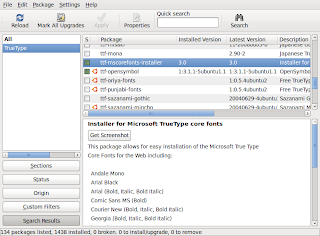


Next, you need to force your font information cache files to refresh in order to make the fonts available. You can either log out and log back in or run the following command in the terminal:

sudo fc-cache -f

Now you can change fonts in Firefox: From the Edit menu select Preferences and then the Content icon. You can change the selected font from there and see the changes in real-time. The good news is that installing these fonts has implications system-wide including other applications such as OpenOffice.

If you spend a lot of time in front of your screen, this is a life-saver.