Sunday, 15 June 2014

Quick Tip - List Applications

You can view a list of installed applications using the terminal - this works in Ubuntu 14.04 & Mint 16. Open a terminal and type:

dpkg --get-selections

If you want to export the output to a file:

dpkg --get-selections > /home/[user]/Documents/app_list.txt

Change [user] to suit your circumstances.

This will place a text file in your Documents folder called, app_list.txt. Double click to open from your file manager.

Sources & References:

  • None

Friday, 13 June 2014

Getting Started With Tails

Because Tails is designed to be used as a live operating system, in many respects downloading and creating a live disk is the same as most other Linux distros. However, given that security is likely the most important consideration for users, special attention should be paid to validating and verifying the download before using the operating system. The following process is aimed at Ubuntu users, links are provided for other operating systems where appropriate.

You can download Tails from the Tails Download, Verify and Install page.

In order to verify the download, you must also download the Tails signing key which you can get from the same link. But (and this is a big but for the security conscious), how can you be sure that the key that you have downloaded is genuine? It's possible (although, not likely) that the key has been compromised by a man-in-the-middle attack and you may want to ensure that the key that you have downloaded has been signed by members of the Debian Development Team.

"Tails signing key is actually already signed by the keys of several official developers of Debian, the operating system on which Tails is based. Debian makes an extensive use of OpenPGP and you can download the keys of all Debian developers by installing the debian-keyring package. You can then verify the signatures those developers made with their own key on Tails signing key."

First, download the signature from Tails Download page to your Download folder (in this example, home/[user]/Downloads/)1 and check that the key is signed. Open a terminal and then:

gpg --import /home/[user]/Downloads/tails-signing.key

This command imports the key into your gpg keyring. In order to check the signatures, you must first locate the Tails key id: the following code will list all public keys (including the Tails key that you've just imported) in your keyring.

gpg --list-public-keys

The output will include the following entry:

pub 4096R/BE2CD9C1 2010-10-07 [expires: 2015-02-05]

uidTails developers (signing key)

uidT(A)ILS developers (signing key)

The relevant ID is the second part (BE2CD9C1) of the alpha-numeric string on the first line; using this key ID, check the signatures with:

gpg --check-sigs BE2CD9C1

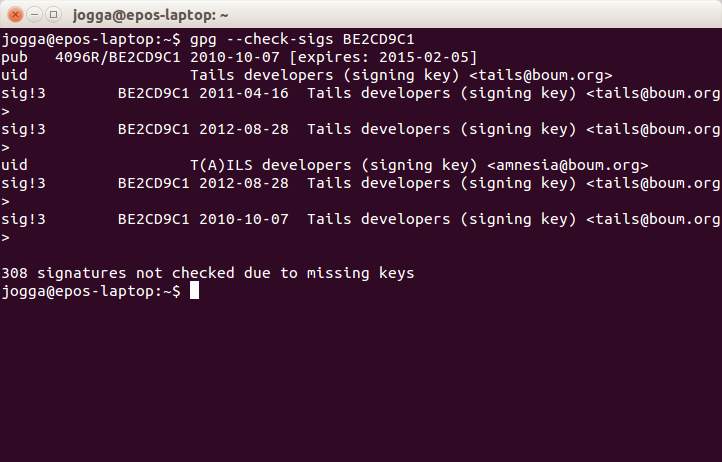
The output will appear as follows:

Note the last line which warns us that: "308 signatures not checked due to missing keys". These missing keys are those of the Debian Developers and others for whom you have no public keys in your keyring. You can download the Debian keys from the Ubuntu Software Center (search for debian-keyring) or with:

sudo apt-get install debian-keyring

Now that you have access to the Debian keys, you can check to see if any of the missing keys are in the Debian keyring:

gpg --keyring=/usr/share/keyrings/debian-keyring.gpg --keyid-format long --check-sigs BE2CD9C1

By using the Debian keyring (rather than your personal keyring) the number of missing keys has been reduced to 300 telling us that eight of the signatories on the Tails key are in the Debian keyring. I think this a more elegant solution that the recommended process: checking random signatures can be both time-consuming and frustrating. Moreover, there is no need to import signatures into your personal keyring that you will be unlikely to use again. Whilst not foolproof, this should give you confidence that the Tails key that you have downloaded is genuine and can be used with confidence to check the Tails .iso file. Fortunately, this is not such a long-winded process as validating the signature!

Change to the Download directory:

cd /home/[user]/Downloads

Next, check the signature of the .iso file matches the signing key:2

gpg --keyid-format long --verify tails-i386-1.0.1.iso.sig tails-i386-1.0.1.iso

If all's gone well, you should see:

gpg: Signature made Sat 30 Apr 2011 10:53:23 AM CEST

gpg: using RSA key 1202821CBE2CD9C1

gpg: Good signature from "Tails developers (signing key) "

Don't worry if you see a warning telling you that "[t]his key is not certified with a trusted signature!", this simply means that you haven't personally signed the Tails key.

Now you're ready to burn the Live Disk. In Ubuntu you simply follow the same procedure as for all Linux Distros: in your file manager, navigate to your download, right-click the .iso file and then select Write to Disc...3. Remember that it is good practise to burn the disk at the lowest possible speed in order to reduce errors.

To use your Live Disk, simply reboot your PC using the optical drive as the first boot device.

That's it! Now you're ready to use the Tails operating system. In the next post, I'll look at the pros & cons of burning a Live USB and consider whether or not to create a persistence file.

Sources & References:

Notes:

    1. Change [user] to suit your circumstances - usually your username
    2. Remember, over time the version numbers will change: make sure that you are referencing the correct file (download) name.
    3. In some other distros (for instance, Mint) this might not be as easy. However, there are appps (such as K3B) that will burn your Live Disk: search the software center or use the link above. Windows users can use Infrarecorder to burn their installation disks.

Sunday, 8 June 2014

Tails You Win!

Whether or not you sympathise with Edward Snowden's decision to air the NSA's & GCHQ's dirty laundry in public, one thing is clear: wholesale data collection from the public network has been ongoing for sometime. Ironically, it seems, that we pay taxes so that our governments can spy on us and, whilst I don't consider myself (particularly) paranoid, Snowden's revelations and the subsequent commentary by people such as Bruce Schneier and Glenn Greenwald have certainly made me reconsider my own online behaviour and security.

In today's world of Facebook and Twitter where virtually everything seems to be shared with virtually everyone, it's easy to be persuaded by the "nothing to hide, nothing to fear" argument: however, whilst I have undoubtedly contributed to some of the pointless and meaningless garbage on the Internet1, I find myself increasingly troubled by this view. Tyranny begins when a government's purpose becomes the scrutiny of its people and it justifies its actions by promoting the politics of fear - society surrenders its personal freedom in order that a few ne'er-do-wells might be apprehended (usually, on the vague suspicion that they might have "been up to something"). Of course I'd be the first to accept that there are bad people out there, but the subjugation of the whole population in order to mitigate an already minuscule risk is, at best, overkill and one is obliged2 to question the motives of the political class!

Sadly, whatever I may think about state-sponsored data theft, the problem is not only likely to continue but also to escalate and the question becomes, what can one do to protect oneself? Snowden himself reportedly uses a Linux system called Tails to keep his online activities hidden from unwelcome attention and Schneier also acknowledges using the operating system. Although my online activities are (almost certainly) not under the same scrutiny as Snowden's or Schneieir's, I thought I'd have a look and see what Tails is, how easy it is to use, and what it offers in terms of user security.

"Tails is a live operating system, that you can start on almost any computer from a DVD, USB stick, or SD card. It aims at preserving your privacy and anonymity"

For those already familiar with the Linux concept of a Live Disk, Tails will not be an entirely alien concept. It does, however, have some interesting quirks:

  1. Tails is pre-configured for online security: all the bundled applications are forced to connect to the Internet via Tor and any that attempt a direct connection are blocked. It is the Tor network that provides the user with anonymity during an online session.
  2. The OS runs as a Live Disk by design: it makes no changes to the system OS and makes no use of the hard drive's swap files. The obvious advantage of this approach is that data from the Tails session can't be extracted from the hardware once the system has been shutdown (because the OS only uses RAM which is dynamic or volatile memory). Moreover, it also means that a user can make use of virtually any computer without leaving a trace.
  3. Encryption is built in: email, browsing, and instant messaging applications all have encryption enabled. Tails will also allow you to encrypt disks using LUKS.

Built on a Debian platform and shipped with the GNOME desktop, if you've used any of the early versions of Ubuntu, the desktop will be quite familiar and most Linux users won't be fazed by the operating environment. That said, some of the bundled apps will likely be less familiar!

Leaving aside the acquisition and installation (more of that in later posts) of this operating system, Tails is pretty simple to use if not a little slow: you'll want to use a USB stick rather than a DVD just to improve boot and application loading times (and to create a secure persistence area in the file system). Moreover, given that java and Flash are turned off (for fairly obvious reasons), the surfing experience won't be the richest you've ever enjoyed!

Having played with Tails for a couple of days, it's clearly a very classy piece of work and the developers are to be applauded for producing an excellent and secure operating system. Nonetheless, I'm not sure that I'll be migrating to Tails any time soon: it's probably a step too far in terms of paranoia.

Over the next few days I'll post hints & tips on downloading and installing the system.

Sources & References:

Notes:

1 In the interests of full disclosure, I acknowledge to maintaining both Facebook & Twitter accounts. Additionally, of course, there's also a blog (attached to a Google+) account...

2 To mangle a quote variously attributed to Courtney, Jefferson, Paine, & Lincoln: "the price of freedom is eternal vigilance"

Wednesday, 4 June 2014

By Popular Demand - Fixing On-Demand Video in Mint 16

After a brutal shift at work, all I wanted to do this afternoon was crash in front of the TV but I got home to find that I had no signal. So, I thought I'd catch up with some on-demand TV from Channel 5 but I couldn't get any video to play via Chromium on any of my Mint 16 systems.

A little research suggested that installing the (now deprecated) hardware abstraction layer (HAL) should get everything except Amazon Prime working. If I've understood the concept correctly, HAL is (more accurately, was) simply a generic way of allowing the OS to access the system hardware regardless of type: conceptually, I think of it as a universal translater! Installing it on Mint 16 is simple. First you need to close Chromium and add a new PPA:

sudo add-apt-repository ppa:mjblenner/ppa-hal

Next, install HAL:

sudo apt-get update && sudo apt-get install hal

This was all that was needed on the DELL Dimension 8400, but I needed to reboot the Aluetia for the changes to take effect. It was worth it though, TV always looks better on a bigger screen!

Sources & References:

Tuesday, 3 June 2014

Mint 16: XServer Fails on Live Disk

I've been playing around with an old Fujitsu Siemens Amilo laptop but couldn't get the Mint 16 Live Disk to boot to the live desktop: from the welcome screen I could only get an error message that XServer had failed. The Amilo graphics are listed as VIA/S3G UniChrome Pro IGP which require the OpenChrome video drivers in Ubuntu and its derivatives.

I have managed to get to a low resolution live desktop (using a USB Live Disk) by tweaking some guidance on the Linux Mint Forums:

From the Linux Mint Welcome screen, I selected Start Linux Mint and then hit Tab. The following code appears under the menu:

/casper/vmlinuz noprompt cdrom-detect/try-usb=true persistent file=/cdrom/preseed/linuxmint.seed boot=casper initrd=/casper/initrd.lz quiet splash --

Playing around with the options, I found that replacing the quiet splash -- element with nouveau.modeset=0 gave me the best result: booting without error to the low-res desktop. My code looked thus:

/casper/vmlinuz noprompt cdrom-detect/try-usb=true persistent file=/cdrom/preseed/linuxmint.seed boot=casper initrd=/casper/initrd.lz nouveau.modeset=0

This code isn't persistent so it won't survive a reboot. However, the advice is that the kernel can be amended to make the change permanent after installation: but, as this isn't my system, I haven't tested that advice!

If you receive the XServer error after changing the code, simply restart X at the prompt:

startx

Then check to make sure that you're using the correct amendments for your graphics.

I've been worrying at this for several days and was about to give up so I'm pretty chuffed that I've got it resolved. That said, I'm not sure that the owner will want to go to the trouble of changing the system on hardware that is this ancient - time will tell!

Sources & References:

Sunday, 1 June 2014

Finally, I've Found Something That Doesn't Work!

I've finally found something that I can't make work using Ubuntu (or its derivatives) - my old Canoscan D1250 U2 flatbed scanner. The good news is that I don't need it, I use my HP Photosmart C6280 which probably explains why I've never tried to get this piece of hardware to work before today!

Sources & References:

The Passing Of Ubuntu One

Today marks the passing of Ubuntu One.

"We are sorry to notify you that we will be shutting down the Ubuntu One file services, effective 1 June 2014.

It is no longer possible to purchase storage or music from the Ubuntu One store. The Ubuntu One file services apps in the Ubuntu, Google, and Apple stores have been removed."

The website goes on to warn users to recover their data before the service is finally deprecated on 31st July 2014: after that date all content will be deleted.

I'm sad but not surprised to see the demise of Canonical's cloud storage offer. However, the reality is that hosting everybody's data for free is an expensive business and Canonical just didn't generate enough revenue to make the service commercially viable.

That said, I've a healthy distrust of cloud computing in general and the proclivity of corporations to collect personal data on their customers in particular, so the recent news that ebay had been hacked did nothing to assuage my fears about our headlong rush to disseminate our personal details and store them online.

I carry a (relatively) recent encrypted backup of all my data wherever I go. All I need to access it is a pc running Linux and encfs installed. At a push, I could even access it using a Live Disk and a Windows PC! Our data is our responsibility: if we hand it over every time a website demands that we do, it's no use whinging when they loose it.

Sources & References: