Sunday, 31 October 2010

Repairing Rythmbox

One of the problems that I experienced when I moved house recently was that my network drive's IP address changed when I plugged my Ubuntu box into the new router equipment. For most day-to-day access this was no problem, I simply repaired the shortcuts in the Nautilus file explorer and everything worked as it should.

However, Rythmbox, my default music player, could no longer read my music library (stored on my network drive) and it took me a little while to figure out how to point the player to the right place. Actually, it's rather a simple operation in Ubuntu, as most things tend to be!
  1. Navigate to /home/[username]/.local/share/rhythmbox
  2. Using your preferred text editor (mine is SciTE), open the */rhythmdb.xml file
  3. Use the text editor's Find/Replace All function to change the IP address or new location
  4. Save the file and reboot your PC
Reopening Rythmbox should rebuild your database and correct any errors when it reconnects with the library. However, as a precaution, I recommend making a copy of your */rhythmdb.xml file before making the adjustments described, just in case you corrupt the original file.

Saturday, 30 October 2010

More Karmic Candy

NASA Image of the Day and the National Geographic Picture of the Day are two of my favourite websites. As you can imagine, these two organizations produce some stunning photographs and many of them end up as temporary wallpapers on my Ubuntu desktop.

As with everything else in Linux, changing backgrounds is easy and, if you know where to look, customizing the behaviour of your wallpaper is convenient and flexible: simply install wallpaper-tray or drapes from the Synaptic Package Manager and add the applet to one of your desktop panels.


You can change the preferences to automatically change your desktop at regular intervals and dictate how the wallpaper renders simply by right-clicking the applet and selecting the Preferences option.


Enjoy!

Friday, 29 October 2010

Seeing is Believing

My wireless keyboard (a Logitech Dinovo) has no onboard indicator lights for the Caps & Number lock functions. This is no problem in Ubuntu, you can add a keyboard indicator applet to a panel.

If the applet doesn't appear in the Add to Panel menu, you can add it via the Synaptic Package Manager: search for Lock-Keys-Applet and check the installation box.


Simply right click on the panel where you want the applet to install and select the applet from the drop-down menu.


You can hide any of the three indicators (Caps, Num, or Scroll) by right-clicking the icon and selecting Preferences...

Tuesday, 28 September 2010

Terminal Access

I moved home recently and discovered that moving house isn't particularly conducive to leisure activity; particularly blogging about computing! However, it can serve to test one's understanding of how computers work or, more accurately, how they can stop working when you move them around.

When I moved, I took the opportunity to change my Internet Service Provider. I won't bore you with all the ways that ISPs in the UK can find to screw up their own processes, suffice to say that it took several weeks before I reconnected to my virtual world. When I finally did connect, I did so using my new ISP's router rather than my trusty (and aged!) 3COM device: I plugged everything in and, presto, out of the box, everything worked as it should and I had the fastest connection to the Internet I have ever enjoyed outside of a professional environment.

You'd think that I'd be happy, right? You'd think that would be enough after weeks of enforced isolation? You'd be wrong!

If you read my post on syncing wirelessly with Windows Mobile, you'll know that I have a couple of legacy devices that can't use the Wi-Fi WPA security protocol and, determined to get back to an integrated network where all my devices could talk to each other, I delved into the workings of my router and changed the security protocol to WEP. However, I must have inadvertently changed a setting that allocates IP addresses to the computers on the network and, once I'd saved the settings, could no longer get an IP address from the router! No IP address, no access!

In desperation I telephoned my ISP. The Technical Department could ping my router and could see it connected to their server, but couldn't manage to help me reset the device. Turning it off and using the reset button had no effect and, after several hours, decided to send me a new router. However, towards the end of the conversation, the helpful young man from India (with flawless English and the patience of Job) mentioned that Telnet might be the answer but, unfortunately, didn't know how it might be achieved. Actually, it turns out that, not only was Telnet the answer but also that it was a simple and (relatively) painless process.

Open a terminal and type

telnet 192.168.1.1

Or whatever your router's default IP address happens to be.

The terminal will prompt you for a password: this is the router's password, not your system password.
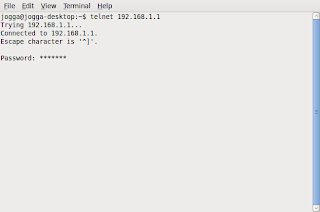


Hit Enter and you have access, although it may not be obvious!
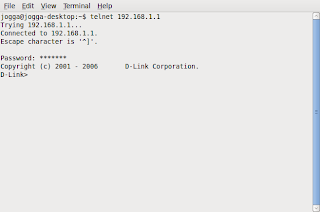


Type sys at the prompt and you'll get a list of all the router's controls.
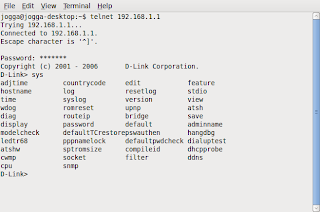


Just type default (or similar) and follow the instructions or prompts. This should reset your router to the factory settings. However, be warned, factory settings do not include your ISP's login details and you'll need your username and password from your ISP in order to reconnect your router.

Monday, 7 June 2010

Before you blame the Equipment Revisited!

It seems that my analysis of my printer problems may have been flawed!

A few days ago I had six documents and three labels to print: all needed to be produced in a rush. Now, call me a cynic, but I can always guarantee that when I'm in a hurry, the bugs and problems will manifest themselves. So, urgent job and I can't get the printer to print more than one document at a time (if I can get it to print anything at all). Thinking that I've already solved the problem I try the cable (no joy), so I replace the cable (still no joy), in despair I turn to Google.

It seems that there is a known bug in the Karmic kernel when using the hplib utility for USB printers (it works fine with network printers). The solution turns out to be fairly simple:
  • Delete the USB printer from the HP Device Manager
  • From the System Menu, select Administration & PrintingSelect Printer from the New drop down menu and the utility will search for available printers.
  • When the printer dialog box appears, select your printer and then click on the Connection option (rhs)

  • Select, USB
  • Click the Forward button and follow the wizard
That's it!

The downside is that I can't use the hp Device Manager to monitor my ink levels or receive status messages: but at least I can print using my hp photosmart 7660 USB printer!

Tuesday, 1 June 2010

Window Dressing

Here's a tip that I discovered quite by accident:

I have a Logitech DiNovo cordless keyboard attached to my Ubuntu box and, as with most of today's commercially available keyboards, it comes with a Windows Start Key. If you press and hold the key and simultaneously press the tab key, you can scroll between open Windows in much the same way that you can in Microsoft Vista.


Just press the tab key (whilst holding the Start key) to move to the next window.

Sunday, 23 May 2010

The Spring Clean and the Wine

Every now and again I'm tempted to have a tidy up: I know that I shouldn't, but I just can't seem to help it.

To help you keep your system at peak running efficiency, Karmic has a Computer Janitor utility (System → Administration → Computer Janitor) which searches your computer and finds all those orphan programs and shared libraries that it thinks that you no longer need. If, like me, you are a trusting soul, the temptation is to simply click the Do Selected Tasks option and think no more about it: however, I urge caution!

This is the second time that I've used the utility only to find subsequently that I couldn't use Wine. I only use Wine to run a single program, Memory-Map and to be honest, it doesn't run particularly well: nonetheless, I have a great wide-screen monitor on my Ubuntu box and it makes for superb viewing of 1:25,000 scale maps. Anyway, long story short: it seemed easier to remove Wine completely and start from scratch than it did to try and repair the damage. I went to the command line and typed:

sudo apt-get remove wine

Typed in my password and waited for the system to do its thing. After removing Wine, I noticed that there was still an entry for the program in the Applications menu although nothing would work when I clicked on the shortcut. It turns out that the standard remove command doesn't remove the Windows applications, you have to remove the ~/wine directory manually.

Open a terminal and type:

rm -rf $HOME/.wine

Once the directory is gone, you can then remove the menu entries and desktop items:

rm -f $HOME/.config/menus/applications-merged/wine*
rm -rf $HOME/.local/share/applications/wine
rm -f $HOME/.local/share/desktop-directories/wine*
rm -f $HOME/.local/share/icons/????_*.xpm


Source: Wine HQ FAQ 5.1

Reinstalling Wine from the Ubuntu software Centre is easy enough and replacing the map viewer from Memory-Map didn't trouble me either but I will think more carefully about spring cleaning in the future!